
How to Set Up Bing Places for Business in Malaysia
Step-by-step Bing Places for Business setup for Malaysian businesses — listing creation, verification and category optimisation.

Bing Places for Business is Bing’s answer to Google Business Profile — a free listing that surfaces on Bing Maps, in Bing local search results, and in Copilot voice queries. Setup takes about 20 minutes plus verification time, and it’s the first task in every Local SEO for Bing engagement we run.
Here’s the step-by-step for Malaysian businesses.
Before you start
You need:
- A Microsoft account (any personal or business Microsoft account works)
- Accurate NAP (Name, Address, Phone) — the exact form you use on your website
- Business hours
- Primary category and up to nine secondary categories
- A few good photos of your business, team, or work
If you already have a Google Business Profile, you can import it and save half the setup time.
Step 1: create the listing
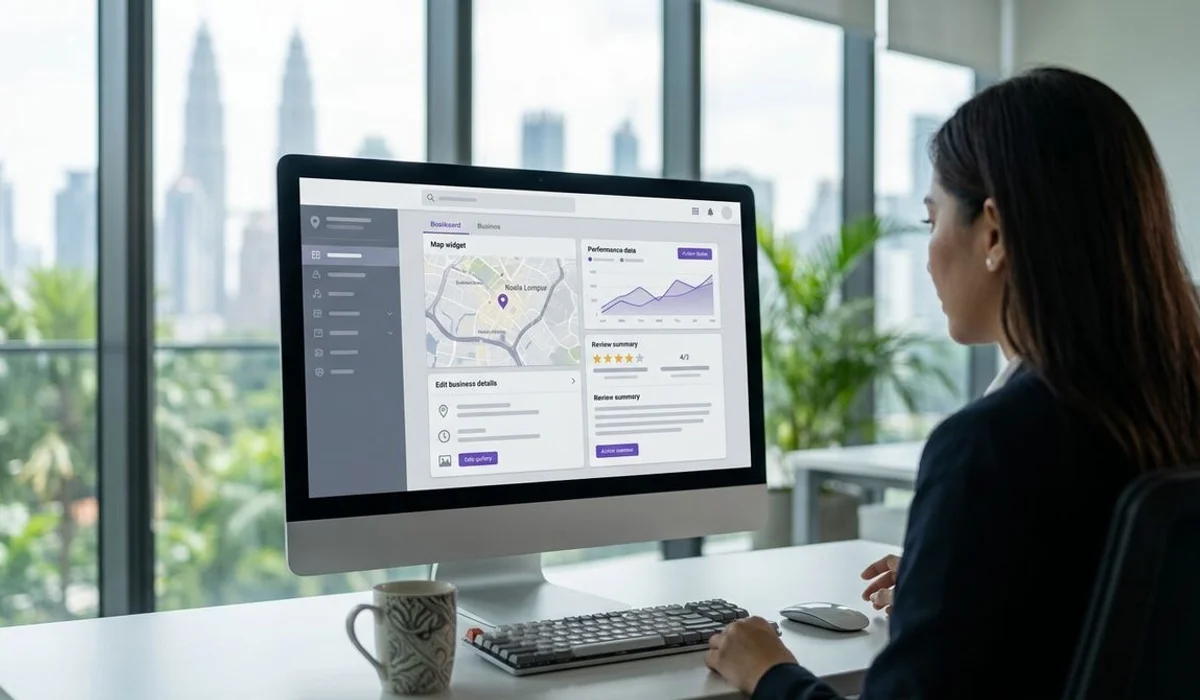
Go to bingplaces.com and sign in with your Microsoft account. You’ll see three options:
- Import from Google Business Profile. Fastest path if you have GBP already.
- Claim an existing Bing listing. Sometimes Bing has an unclaimed listing for your business — search and claim it.
- Add a new business. For businesses without an existing listing.
Choose the right path and follow the prompts.
Step 2: fill in the details
Complete every field. Bing rewards completeness:
- Business name. Exactly as it appears on your website and Google Business Profile.
- Address. Exact format, including unit/suite number for multi-tenant buildings.
- Phone. Include Malaysia country code (+60).
- Category. Choose the most specific primary category. Add up to nine secondary categories.
- Hours. All open days and times.
- Website URL. Include https:// prefix.
- Description. 200-300 words describing your business in natural language.
Step 3: verify the listing
Verification confirms you own the business. Options for Malaysian businesses:
- Postcard (most common). Bing sends a postcard with a verification code to your business address. Arrives in 7-14 working days.
- Phone verification. Available for some categories. Instant.
- Bulk verification. For multi-location businesses with 10+ locations.
Enter the code when you receive it, and the listing goes live.
Step 4: optimise for local search

Post-verification, spend an hour on these:
- Photos. Upload at least 10 high-quality photos: exterior, interior, team, work, products. Bing displays these prominently.
- Attributes. Toggle attributes relevant to your business (wheelchair accessible, WiFi, appointment required, etc.).
- FAQ. Add 3-5 common questions and answers to the FAQ section — this feeds Cortana and Copilot voice answers.
- Services. List your specific services with brief descriptions.
- Products. If applicable, list key products with pricing.
Step 5: maintain the listing
Update Bing Places whenever real-world details change:
- New hours (public holidays, Ramadan, etc.)
- Address moves
- New services or products
- New photos
- Responses to reviews
Malaysia-specific notes
- Address format. Use full Malaysian format including postcode. Bing recognises this.
- State names. Use “Kuala Lumpur”, “Selangor”, “Penang” (not “Wilayah Persekutuan Kuala Lumpur” or similar formal variants).
- NAP consistency. Match exactly across Bing Places, Google Business Profile, your website, and Malaysian directories. Even small variations hurt local rankings — our guide to NAP consistency for local Bing rankings explains why and how to clean it up.
For a full local Bing SEO setup including Bing Places optimisation and NAP consistency across Malaysian directories, book a free audit to check your current local visibility.
Frequently asked
Don't see your question? Send us a message and we'll answer within one business day.